What if your journal could talk back? Imagine a thoughtful companion who knows about your past and asks just the right questions—helping you reflect deeper, explore new perspectives, and uncover fresh insights.
Mobile App
How to use personalized prompts
To start with a prompt:
- From the dashboard, tap Write
- Tap the Prompts icon (⭐)
You can:
- Type a custom direction to guide your entry
- Select a prompt from the list
Mindsera adds the chosen prompt to your entry so you can begin writing.
How to use personalized prompts with Voice mode
While inside an entry, tap the + button, then choose Voice mode.
Speak naturally while Mindsera listens.
Tap the Go Deeper button (✨) — it works the same way as in Voice Journaling:
- Your speech is transcribed
- Mindsera generates an AI follow-up
- You can continue recording to explore your thoughts further
How to change direction mid‑entry
While writing (after starting an entry):
- Tap the + button
- Choose New direction
- Pick a prompt or type your own
Mindsera then shifts the focus of your entry to the new topic.
How to customize personal prompts
You can adjust how the AI responds to you and supports your reflection.
While inside an entry:
- Tap the + button
- Choose Customize AI
You can:
- Select a mode: Conversational or Questions only
- Choose a tone: eg. Gentle, Neutral, or Direct
- Select a perspective: or tap Other to create your own
- Add a custom instruction: to guide the AI beyond tone and perspective to unique behaviors, knowledge areas, or response styles.
- Pick a preset direction: such as Psychologist, CBT Coach, Stoic, Challenger, or Gen Z
How to use dark mode
You can switch between light and dark modes based on your perference.
From the dashboard:
- Tap the profile icon in the top right of the dashboard.
- Then, tap ‘Appearance’.
From here you can choose between:
- System (Mindsera automatically switches between light mode and dark mode based on your device settings.)
- Light
- Dark
Web app
1. Get Started with Prompts
- Click "Prompt Me" if you're unsure where to start.
- Mindsera will help you get the reflection going.
2. Dig Deeper into Your Writing
- Click "Go Deeper" (or press Cmd + Enter on Mac / Ctrl + Enter on Windows) to receive a thoughtful follow-up reflection based on what you just wrote.
- If it doesn’t feel quite right, hit "Refresh" for a new one on the same topic.
3. Fully Customizable
- You can customize the output exactly how you like. Click the ‘+’ button next to "Go Deeper" and then choose "Customize AI"
- Tone (style of interaction)
- Adjust the style of responses to fit your preferences. Choose "Neutral" for balanced and objective without added personality or emotion.
- Perspective (guiding worldview)
- Have your responses align with your perspective, whether based on a specific philosophy, religion, or worldview.
- Custom Instructions
- Use custom instructions to add specific preferences that go beyond tone and perspective. You can define unique behaviors, knowledge areas, or response styles.
4. Change Direction Mid-Writing
- When you want to take your journaling in a new direction, click the ‘+’ button next to "Go Deeper" and then choose "New Direction"
- You’ll get:
- Topics based on your previous journal entries and recurring themes.
- Some random topics to help spark new insights
- Option to define the direction you want to explore.
- Once selected, Mindsera will shift the flow of the conversation to guide your reflection accordingly.
5. Designed for Reflection, Not Answers
- Keep in mind: this feature isn’t here to give you final answers. It’s designed to help you dive deeper, spark meaningful insights, and keep your reflection flowing. It won’t summarize, conclude, or answer for you.
- The goal is to offers thought-provoking prompts to enhance your self-reflection and support the natural flow of your writing.
With these features, the minimal editor ensures a seamless, distraction-free, and insightful journaling experience.
How to write in fullscreen mode
Using fullscreen mode limits distractions, so you can focus on your thoughts.
Mac
Control + Command + F (go fullscreen)
Shift + Command + F (hide tabs, address bar)
PC
F11
iOS
See Mobile App
How to use dark mode
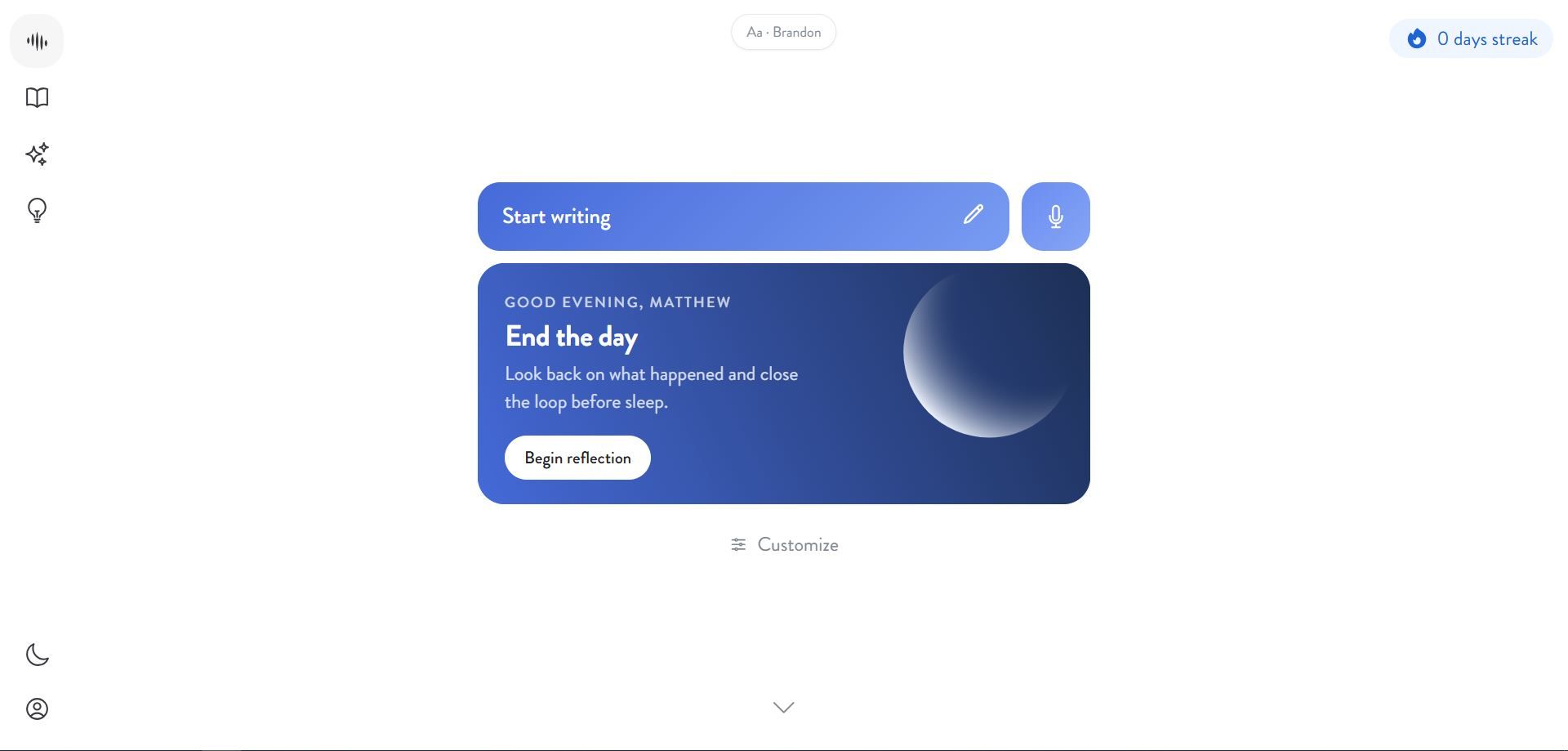
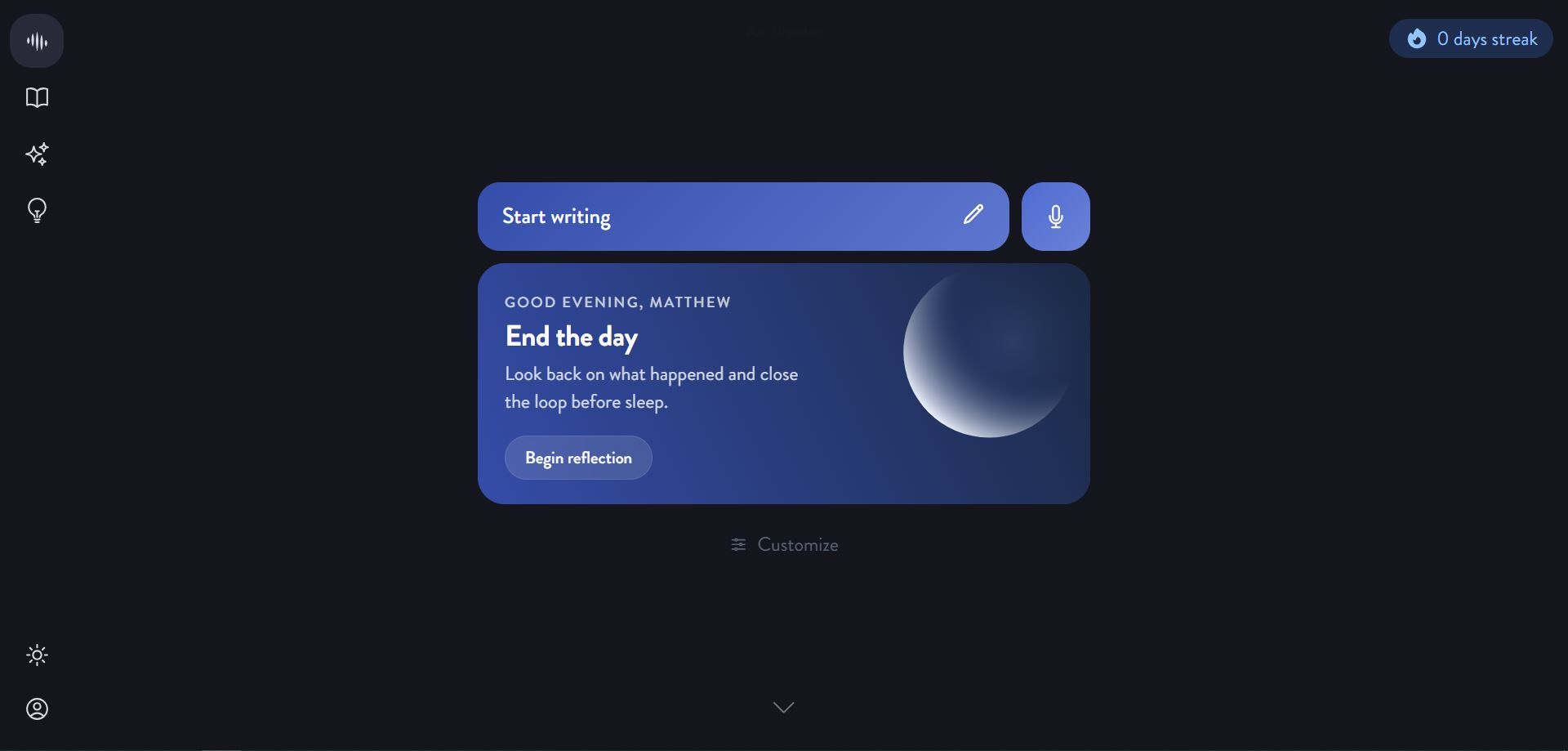
Mindsera automatically switches between light mode and dark mode based on your device settings. You can also toggle between modes anytime by clicking the moon icon in the bottom left to enable dark mode and then clicking on the sun icon to enable light mode.